Selasa, 20 Oktober 2015

HyperCam, Kamera dengan Kemampuan Mengambil Detail Foto Yang Tidak Dapat Dilihat Oleh Mata Manusia

Berkembangnya teknologi terus berjalan, seiring dengan ketersediaan alat-alat yang semakin mudah. Salah satunya adalah HyperCam atau Hyperspectral Camera, sebuah kamera yang dapat mengambil detail foto yang tidak dapat dilihat secara telanjang oleh mata manusia.


Dikutip dari PetaPixel, Senin (19/10/2015), disebutkan bahwa teknologi Hiperspektral ini rata-rata digunakan untuk mendeteksi secara detail dokumen lama, atau lukisan tua yang sudah beratus-ratus tahun umurnya. Dengan menggunakan metode pengumpulan informasi melalui spektrum elektromagnetik yang nampak dalam keadaan cukup cahaya.
Namun tidaklah murah untuk dapat memiliki kamera dengan teknologi Hiperspektral tersebut, maka dari itu munculah ide HyperCam dengan biaya yang jauh lebih murah. Proyek HyperCam sendiri merupakan kolaborasi antara peneliti dari Universitas Washington dengan peneliti dari Microsoft.
Cara kerjanya adalah, HyperCam menangkap 17 foto dari berbagai titik dalam spektrum elektromagnetik. Kemudian algoritma khusus digunakan untuk mencari detail dari masing-masing foto, mana yang menarik untuk dipilih. Seperti pada contohnya adalah foto berikut ini, yang menampilkan secara detail pembuluh darah pada kepalan tangan manusia.

Untuk biayanya, para peneliti ini menggunakan kamera seharga 11 juta Rupiah, serta harga untuk menciptakan teknologi Hiperspektral ini setidaknya kisaran 50 USD atau sekitar 675 ribu Rupiah. HyperCam sendiri saat ini masih berupa prototipe yang terus dikembangkan. Para peneliti ini berharap agar teknologi ini dapat secepatnya dinikmati di khalayak luas bahkan dapat digunakan pada smartphone sekalipun.
Tentunya dengan adanya teknologi Hiperspektral yang murah, sangat bermanfaat bagi kehidupan manusia, terutama pada bidang medis, mengingat teknologi ini mampu menghasilkan gambar detail dari permukaan kulit manusia secara detail
Source : http://www.beritateknologi.com/

Senin, 19 Oktober 2015

How to configure a static IP address on CentOS 7


Question: On CentOS 7, I want to switch from DHCP to static IP address configuration with one of my network interfaces. What is a proper way to assign a static IP address to a network interface permanently on CentOS or RHEL 7?
If you want to set up a static IP address on a network interface in CentOS 7, there are several different ways to do it, varying depending on whether or not you want to use Network Manager for that.
Network Manager is a dynamic network control and configuration system that attempts to keep network devices and connections up and active when they are available). CentOS/RHEL 7 comes with Network Manager service installed and enabled by default.
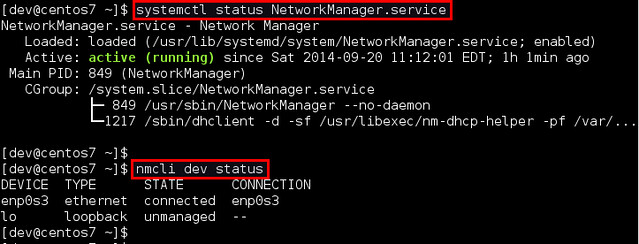
To verify the status of Network Manager service:
$ systemctl status NetworkManager.service
To check which network interface is managed by Network Manager, run:
$ nmcli dev status
If the output of nmcli shows "connected" for a particular interface (e.g., enp0s3 in the example), it means that the interface is managed by Network Manager. You can easily disable Network Manager for a particular interface, so that you can configure it on your own for a static IP address.
Here are two different ways to assign a static IP address to a network interface on CentOS 7. We will be configuring a network interface named enp0s3.

Configure a Static IP Address without Network Manager

Go to the /etc/sysconfig/network-scripts directory, and locate its configuration file (ifcfg-enp0s3). Create it if not found.
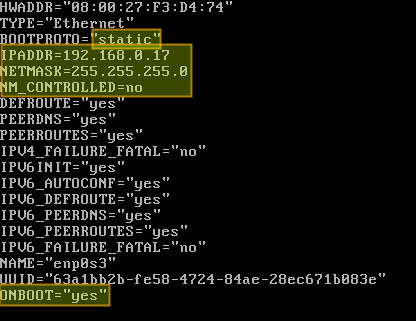
Open the configuration file and edit the following variables:
In the above, "NM_CONTROLLED=no" indicates that this interface will be set up using this configuration file, instead of being managed by Network Manager service. "ONBOOT=yes" tells the system to bring up the interface during boot.
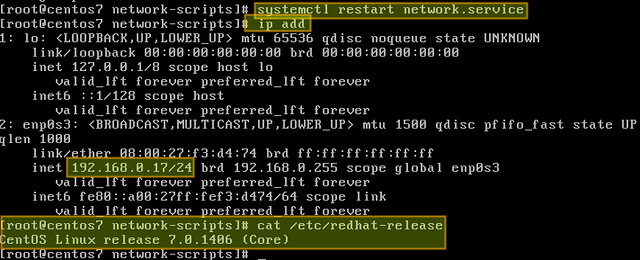
Save changes and restart the network service using the following command:
# systemctl restart network.service
Now verify that the interface has been properly configured:
# ip add

Configure a Static IP Address with Network Manager

If you want to use Network Manager to manage the interface, you can use nmtui (Network Manager Text User Interface) which provides a way to configure Network Manager in a terminal environment.
Before using nmtui, first set "NM_CONTROLLED=yes" in /etc/sysconfig/network-scripts/ifcfg-enp0s3.
Now let's install nmtui as follows.
# yum install NetworkManager-tui
Then go ahead and edit the Network Manager configuration of enp0s3 interface:
# nmtui edit enp0s3
The following screen will allow us to manually enter the same information that is contained in /etc/sysconfig/network-scripts/ifcfg-enp0s3.
Use the arrow keys to navigate this screen, press Enter to select from a list of values (or fill in the desired values), and finally click OK at the bottom right:
Finally, restart the network service.
# systemctl restart network.service
and you're ready to go.

Source : http://ask.xmodulo.com/configure-static-ip-address-centos7.html